

Google Ads conversion tracking is quietly breaking for thousands of advertisers in 2026, and most won’t notice until the numbers stop making sense. Standard browser-based tracking now misses between 30 and 50 percent of actual conversions—not because your campaigns are failing, but because the infrastructure that connects clicks to customers has fundamentally changed. Ad blockers, iOS privacy restrictions, consent requirements, and Google’s own platform consolidation have all converged at once, and if your tracking setup hasn’t been audited in the last six months, you’re almost certainly losing data. This article walks through what broke, why it matters, and the specific fixes you can implement this week to stop leaving money on the table.
Why Google Ads Conversion Tracking Is Breaking Right Now
The problem isn’t one thing—it’s five things happening at the same time, and they’re all eroding the signal between the ad click and the conversion event. When practitioners audit new accounts they’ve just inherited, they find a conversion tracking error in roughly 60 to 70 percent of them. That’s not an edge case. That’s the norm.
Here’s what changed in 2026 specifically:
- Enhanced conversions merged into one toggle. In June 2026, Google collapsed “enhanced conversions for web” and “enhanced conversions for leads” into a single account-level feature with a simple on/off switch. If you had both methods running separately before, you were migrated automatically—but only if you’d already accepted Google’s customer data terms.
- Offline conversion imports moved to a new API. Also effective June 15, 2026, offline conversion uploads and enhanced conversions for leads imports left the Google Ads API entirely and now run through the Data Manager API. If you’re using a CRM integration or uploading conversions manually, that pipeline changed under you.
- Consent Mode v2 became mandatory for EEA and UK traffic. Since March 2024, advertisers serving European users must implement Consent Mode v2 through a Google-certified consent management platform, passing all four required signals. When users decline cookies, Google models the missing conversions—recovering on average more than 70 percent of lost journeys, but only if your CMP is wired correctly.
- iOS opt-in rates remain abysmal. Only 35 percent of iOS users opt in when Apple’s App Tracking Transparency prompt appears, which means device-based signals are gone for two-thirds of iPhone traffic. Click-based identifiers like GCLID are now the only reliable thread.
- GA4 doesn’t preserve GCLID the way Universal Analytics did. If you’re still relying on GA4’s native conversion tracking for Google Ads reporting, you’re missing conversions. GA4 conversions must now be exported into Google Ads rather than tracked natively, and even then, the two platforms will never match because they use different attribution windows and date logic.
The result: your Google Ads dashboard shows one number, your CRM shows another, and your GA4 shows a third. None of them are wrong—they’re just measuring different slices of reality. The problem is that Google’s bidding algorithm only sees what Google Ads can track, so if half your conversions are invisible, your bids are being set on incomplete information.
The Five Most Common Google Ads Conversion Tracking Failures
Analysis of more than 500 account audits found that 73 percent of tracking failures clustered into just five repeatable categories. If you’re troubleshooting right now, start here—these are the usual suspects.
1. The Click Identifier Drops Somewhere in the Funnel
When someone clicks your ad, Google appends a GCLID parameter to the landing page URL. The conversion linker tag stores that identifier in a first-party cookie. That GCLID is the thread connecting the click to whatever happens later—checkout, form submission, phone call. If it drops anywhere along the journey, the conversion still happens but Google Ads never hears about it.
Common places the GCLID gets lost:
- Redirects from the landing page to a subdomain or different domain
- Payment gateways that don’t pass URL parameters through
- Cross-domain hops (e.g., landing on yourdomain.com, checking out on checkout.yourdomain.com)
- Mobile app handoffs where the user starts on web and finishes in-app
- Thank-you pages that reload or redirect after the conversion tag fires
If your paid traffic converts in GA4 but not in Google Ads, this is almost always the culprit. The fix is to walk the entire funnel with a test GCLID appended to the URL and watch the network tab in Chrome DevTools to confirm the identifier survives every step.
2. The Conversion Tag Was Removed or Never Fires
This one sounds obvious, but it’s shockingly common after site redesigns, platform migrations, or developer handoffs. A conversion action in Google Ads shows “no recent conversions” or “unverified” status, but nobody checks because the campaigns are still running and traffic looks fine.
The tag might be:
- Deleted entirely during a site rebuild
- Firing on the wrong page (e.g., the cart page instead of the order confirmation page)
- Blocked by an ad blocker or privacy extension
- Firing before the GCLID cookie is set, so it has nothing to report
Open the tag diagnostics report in Google Ads under Goals > Conversions > Summary. If a conversion action shows “needs attention” or “urgent,” that’s your red flag. Then load the actual confirmation page and use Google Tag Assistant to verify the conversion tag fires exactly once on the real event.
3. Double Counting from Multiple Tags on One Page
This is the opposite problem and it’s just as damaging. Your conversion counts look suspiciously high, your reported ROAS is better than what the bank account shows, and nobody can reconcile the numbers. You’ve got multiple tags firing on the same conversion event—maybe one hardcoded in the theme, one deployed through Google Tag Manager, and one imported from GA4.
Check your conversion action settings. If the counting method is set to “every” instead of “one,” and users are reloading the thank-you page or hitting the back button, you’re counting the same person multiple times. Set it to “one” unless you’re tracking transactions where repeat purchases within the same session are genuinely separate orders.
4. Flat or Missing Conversion Values
Every conversion shows the same value—or no value at all—even though your actual order sizes vary wildly. This breaks ROAS reporting and makes it impossible to optimize for revenue instead of volume. The issue is usually that the dynamic value parameter isn’t wired into the conversion tag, or the currency code doesn’t match what Google Ads expects.
If you’re using Google Tag Manager, the conversion value should pull from a dataLayer variable that your e-commerce platform or form plugin populates at checkout. If you’re hardcoding the tag, you need to template the value field with your platform’s order total variable. And make sure the currency in the tag matches the currency in your Google Ads account settings—mismatches get silently ignored.
5. Consent Mode Misconfiguration
If you serve traffic in the EEA or UK and you saw conversions suddenly collapse with no other explanation, your consent implementation is broken. Either your consent management platform isn’t passing the required signals to Google, or your default consent state is set incorrectly, or the consent update isn’t firing before the conversion tag tries to fire.
Your Consent Mode default state tag must fire before any other Google tag on every page. Set it to fire on “Consent Initialization,” with ad_storage and ad_user_data denied by default. Your CMP must push a consent update to the dataLayer when the user accepts. Verify in Tag Assistant that consent state shows “granted” before the conversion tag fires. If consent is still “denied” when the tag fires, the conversion gets modeled instead of directly attributed, and modeling only works if you’re sending enough volume for Google to build a statistical model.
The 30-Minute Audit That Catches Most Problems
You don’t need a six-hour forensic deep-dive to find the majority of tracking issues. Here’s the audit we run on every new account, and it takes about thirty minutes if you know where to look.
Step 1: Inventory Your Conversion Actions
Open Goals > Conversions > Summary in Google Ads. List every conversion action and note its status, category, counting setting, attribution model, conversion window, and whether it’s marked as primary or secondary. Anything showing “no recent conversions” or “unverified” goes on your fix-first list. Anything you can’t explain the business purpose of gets archived or deleted.
Also check for duplicates. If you’re importing conversions from GA4 and tracking the same event with a Google Ads conversion tag, you’re double-counting. Set the GA4-imported version to secondary (Include in Conversions = Off) and leave the direct tag as primary.
Step 2: Read the Tag Diagnostics
The tag diagnostics report grades your tag quality as excellent, good, needs attention, or urgent. If you’re running enhanced conversions for leads, there’s a separate diagnostics report showing how much conversion data you’re actually recovering. These two screens surface a large share of problems before you ever open a browser.
Step 3: Walk the Journey with a Real Identifier
This is the step everyone skips and the one that catches identifier drops. Load your landing page with a test GCLID appended to the URL—something like ?gclid=TeSt123. Then navigate through the funnel exactly the way a customer would. Watch the URL bar and the network tab in Chrome DevTools. The identifier should survive every redirect, every cross-domain hop, every step of checkout, and the conversion tag should fire exactly once on the true confirmation event.
If the GCLID disappears at any point, you’ve found your break. The fix depends on where it happens—cross-domain tracking settings in Google Tag Manager, URL parameter forwarding in your payment gateway, or server-side redirects that need to be updated to preserve query strings.
Step 4: Verify Enhanced Conversions Is Actually On
Open Goals > Conversion Settings > Customer data use. As of June 2026, this is a single account-level toggle. If it’s off, turn it on—but only if you’re actually sending hashed user data (email, phone, address) with your conversion events. Enhanced conversions recovers a portion of conversions lost to ad blockers and cookie restrictions by matching hashed customer data to signed-in Google accounts, but it only works if you’re sending that data in the first place.
If you’re using Google Tag Manager, the user-provided data should come from form fields or a dataLayer variable. If you’re using the Data Manager API, your CRM integration needs to include those fields in the upload. Check the enhanced conversions diagnostics report to see what percentage of your conversions are actually being enhanced—if it’s under 50 percent, you’re not capturing enough user data at the point of conversion.
Step 5: Reconcile Against Your Source of Truth
Pull the last full month of data. Get conversion counts from Google Ads, key events from GA4, and closed deals or completed orders from your CRM or e-commerce platform. Write the three numbers side by side. You’re not looking for a match—you’re looking for a gap you can explain.
A 10 to 30 percent difference between Google Ads and GA4 is normal and expected. Google Ads attributes conversions to the click date; GA4 attributes them to the conversion date. Google Ads defaults to a 30-day click window; GA4 uses a 90-day window. Google Ads counts conversions; GA4 counts events, and one session can trigger multiple events. If the gap is bigger than 30 percent, or if your CRM shows significantly more customers than either platform, you’ve got a tracking problem worth fixing.
What to Fix First (and What Can Wait)
Not every tracking issue is worth the same amount of time. Here’s how we triage when we take over an account that’s bleeding conversions.
Fix Immediately
- Missing or broken conversion tags. If a conversion action shows “unverified” or hasn’t recorded anything in the last 30 days, and you know that event is happening, this is your top priority. No tag means no data, and no data means blind bidding.
- Auto-tagging turned off. If auto-tagging is disabled in your Google Ads account settings, turn it on immediately. Without it, Google Ads can’t append the GCLID to your landing page URLs, and click-based attribution stops working entirely. This is almost always turned off by accident.
- GCLID drops in the funnel. If paid traffic shows up in GA4 but conversions don’t appear in Google Ads, the click identifier is getting lost somewhere. Walk the funnel with a test GCLID and fix every break in the chain.
Fix This Month
- Double-counting from duplicate tags. If your conversion counts are inflated and you’ve got multiple sources tracking the same event, set all but one to secondary. This won’t recover lost conversions, but it will make your reporting accurate enough to trust.
- Consent Mode misconfiguration. If you’re serving EEA or UK traffic and you haven’t implemented Consent Mode v2 correctly, Google is modeling your conversions with incomplete data. Fix the CMP wiring and you’ll recover a meaningful chunk of lost signal.
- Enhanced conversions turned off. If the toggle is off and you’re capable of sending hashed user data, turn it on. This is a low-effort, high-return fix that recovers conversions lost to cookie restrictions and ad blockers.
Fix When You Have Time
- Conversion value issues. If your values are flat or missing, it’s annoying but not urgent unless you’re optimizing for ROAS. Fix it when you’re ready to move from volume-based to value-based bidding.
- Attribution window adjustments. Google Ads defaults to a 30-day click window and a 1-day view window. If your sales cycle is longer or shorter, adjust the windows to match reality—but this is a reporting change, not a data loss fix.
- GA4 and Google Ads reconciliation. Chasing a perfect match between the two platforms is a waste of time. Document why the gap exists, write it down in a shared doc, and move on.
What Happens If You Don’t Fix This
The immediate cost is invisible budget waste. If Google Ads can only see half your conversions, Smart Bidding is optimizing on half the signal. That means you’re underbidding on keywords and audiences that actually convert, and overbidding on ones that don’t. Your cost per acquisition looks worse than it is, your ROAS looks worse than it is, and you’re either cutting budget on campaigns that work or defending ones that don’t based on incomplete data.
The second cost is strategic. If you can’t trust your conversion data, you can’t make good decisions. You don’t know which landing pages work, which ad copy converts, or which audiences are worth scaling. You’re flying blind, and every test you run is compromised by measurement error.
The third cost is client trust—or if you’re the business owner, your own confidence in the channel. When the dashboard says one thing and the bank account says another, the instinct is to blame the platform or the agency. But most of the time, the campaigns are fine. The tracking is broken, and broken tracking makes good campaigns look bad.
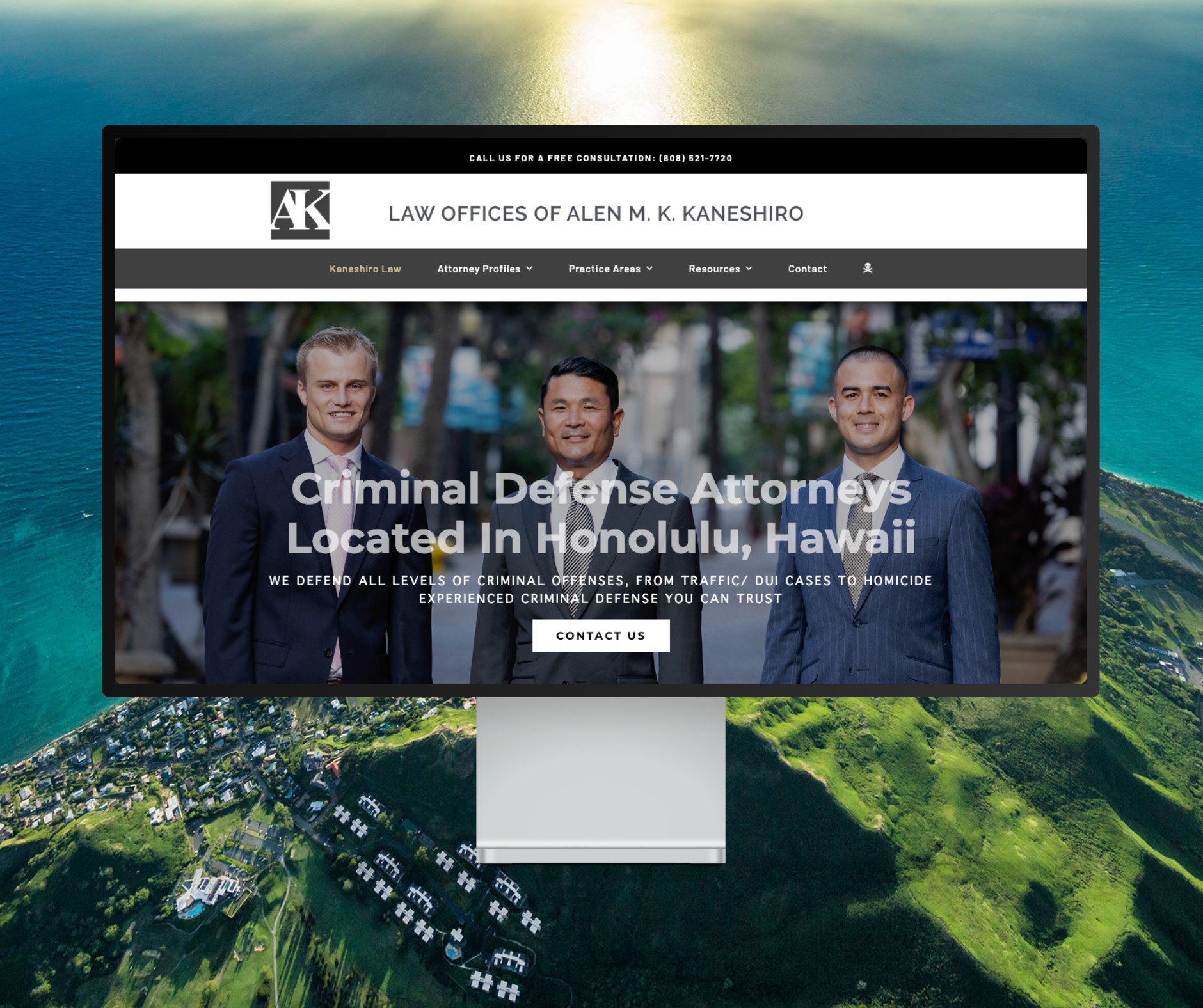
Featured Website: www.kaneshirolaw.com
Kaneshiro Law Firm, one of Hawaii’s most respected legal practices, partnered with The X Digital three years ago for a complete website redesign. Since then, we’ve maintained an ongoing relationship—handling updates, optimizations, and technical support around the clock. Our dedicated team ensures they’re never without assistance, while our enterprise-grade hosting provides 24/7 uptime monitoring and reliability. Kaneshiro Law Firm is one of many long-term clients who trust us to keep their digital presence running flawlessly.